Setup guide
To-Do List Widget for iPhone: A Home Screen Setup Guide
A to-do list you have to open is a to-do list you forget. Here's how to put today's tasks on your iPhone Home Screen — and how to lay the screen out so it actually works.
Most people do not abandon their to-do app because it lacks features. They abandon it because the list lives one tap too far away. You unlock the phone, see Instagram, and the list stays closed until Thursday.
A Home Screen widget fixes exactly that problem. It turns your task list from something you visit into something you glance at twenty times a day without deciding to.
How to add a to-do list widget on iPhone
- Install a to-do app that ships widgets. Not every app does, and some hide widgets behind a paid tier. Check before you commit to an app.
- Long-press an empty area of the Home Screen. The icons start to jiggle and an Edit or plus button appears in the top-left corner.
- Tap the plus button and search for the app. Type the app name in the widget gallery search field rather than scrolling the whole list.
- Swipe through the sizes and pick one. Small, medium and large all show a different amount of your list. More on which to choose below.
- Tap Add Widget, then drag it into place. Put it in the top half of your first Home Screen. Anything below the fold gets scrolled past.
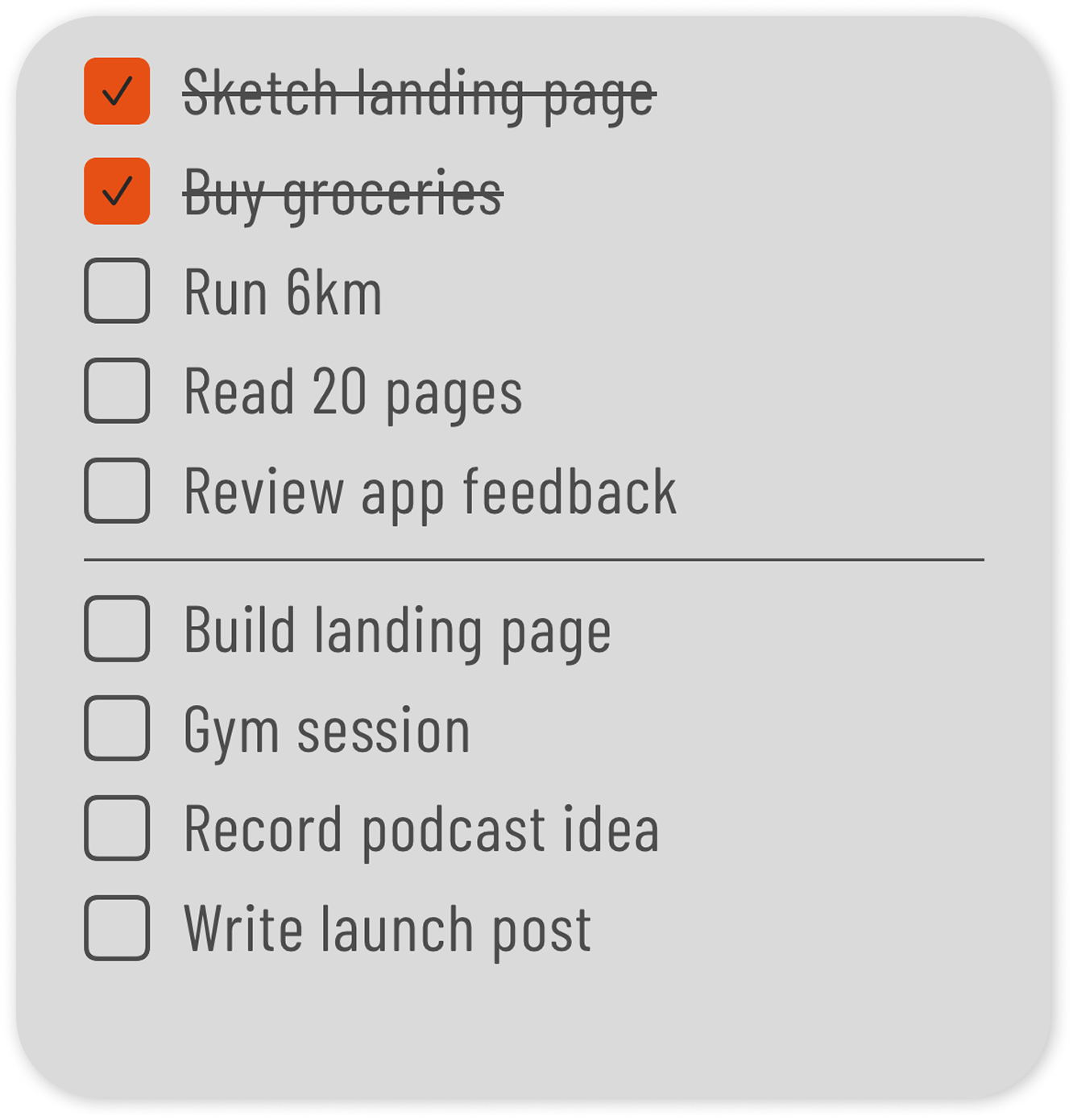
Which widget size should you use?
- Small. Shows a task count or the next item. Good as a nudge, not enough to plan from.
- Medium. Around three to four tasks. The best balance if you keep a short daily list, and it leaves room for icons alongside it.
- Large. The whole day, and often part of tomorrow. Choose this if you want the Home Screen to be the planner rather than a reminder that a planner exists.
If you are unsure, start with large for two weeks. Most people find that seeing the full day is what changes the habit, and shrink to medium only once the routine sticks.
Lock Screen widgets and the Smart Stack
iOS also lets you add small widgets to the Lock Screen (long-press the Lock Screen, tap Customise). These are tiny — a count or a single line — but they are the first thing you see when you pick the phone up, which makes them a strong second placement rather than a replacement.
Avoid burying your list inside a Smart Stack. Stacks rotate, and a task list that only appears when iOS decides it is relevant defeats the point of a glanceable planner.
A Home Screen layout that keeps you on task
- Give the first screen to the widget. Top half, above the fold, full width if you can spare it.
- Move the time-sink apps off page one. Social and news apps go to page two or the App Library. You can still open them — you just have to mean it.
- Keep four to six icons on page one. Fewer icons means the widget is the thing your eye lands on.
- Match the widget theme to your wallpaper. A widget that looks like part of the phone gets read. One that looks like an advert gets ignored.
What makes a good widget to-do list
The widget is only as useful as the list behind it. If your app shows a flat backlog of ninety items, the widget shows the first three of ninety — which is noise, not a plan.
The lists that work on a Home Screen are short and dated to a specific day. Three to six tasks for today, tomorrow visible if you have room. That is why day-by-day weekly planners suit widgets better than project managers do.
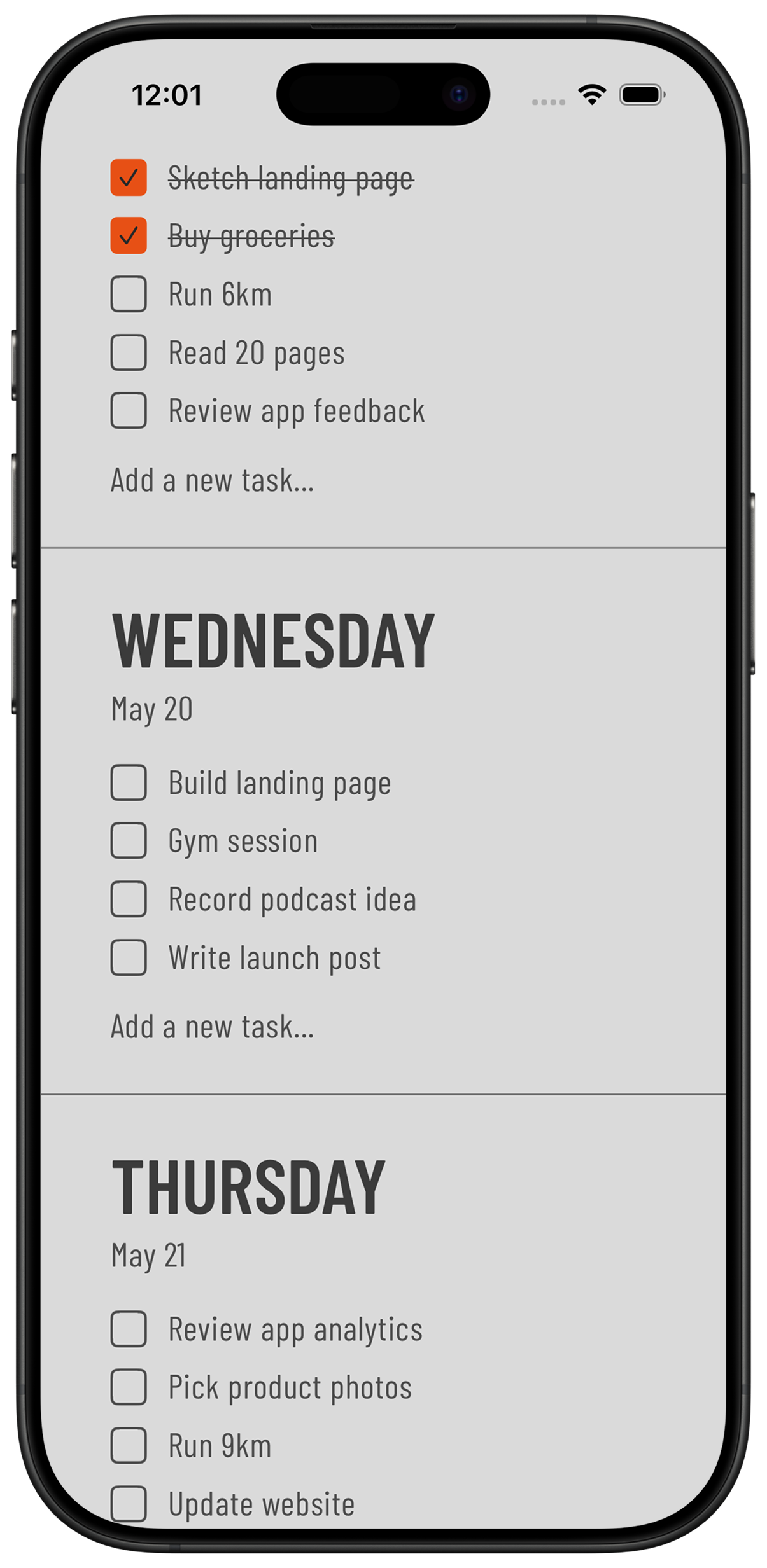
Using Tally To Do as your widget planner
Tally To Do was built for this setup. The app is a week of short day lists, and the widgets show today straight on the Home Screen in small, medium and large sizes — no account to sign into, and tasks stay on your device. It is a one-time purchase after a free trial, so widgets are not locked behind a plan.
Plan the week once on Sunday, then let the widget carry the day. You will stop opening the app and start just doing what it says.
Common questions
How do I add a to-do list widget to my iPhone Home Screen?
Long-press an empty part of the Home Screen, tap the plus button in the top-left corner, search for your to-do app, swipe to the size you want and tap Add Widget. Then drag it to the top half of your first Home Screen.
Does iPhone have a built-in to-do list widget?
Yes — Apple Reminders includes widgets. They are list-based rather than week-based, so if you want to see a specific day's plan you will need to set up scheduled or smart lists yourself.
Can I put a to-do list on the iPhone Lock Screen?
Yes. Long-press the Lock Screen, tap Customise and add a widget if your app offers one. Lock Screen widgets are small, so treat them as a nudge and keep the full list on the Home Screen.
Why does my to-do widget not update?
iOS refreshes widgets on its own schedule to save battery. Most task widgets update within a few minutes; opening the app forces a refresh immediately.
What is the best widget size for a to-do list?
Large if you want the Home Screen to be your planner, medium if you keep a short daily list and want room for app icons. Small widgets are best as a reminder rather than a working list.
Put today on your Home Screen
Tally To Do gives you small, medium and large Home Screen widgets on top of a simple weekly list. 7 days free, then €4.99 once.
Download on the App Store
Related guides
- Phone Planner: How to Use Your Phone to Plan Your Week — the wider Home Screen system this widget belongs to.
- Weekly Planner App: How to Plan Your Week in 5 Minutes — the Sunday routine that fills the widget with the right tasks.
- Minimalist Weekly Planner Apps: A Simple Comparison — which minimalist planners ship decent widgets.
- The Ivy Lee Method: A Simple Daily Productivity System — keep the widget list to six tasks that matter.
- Guides