Android guide
The Simplest To-Do List App for Android
Most Android to-do apps are project managers in disguise. Here is what a genuinely simple one looks like — and how to set one up in five minutes.
Search the Play Store for a to-do list and you get project managers: boards, labels, priorities, sub-tasks, team workspaces and a subscription. They are excellent tools for a team of twelve. They are absurd for remembering to book the car in on Thursday.
If you are on Android and want something you open, tap twice and close, the list of options is much shorter than the store makes it look. This guide covers what to look for, and what to ignore.
What makes an Android to-do app actually simple
- One screen, no setup. If the app asks you to create a project, choose a workspace or pick a template before you can write a task, it is not a to-do app.
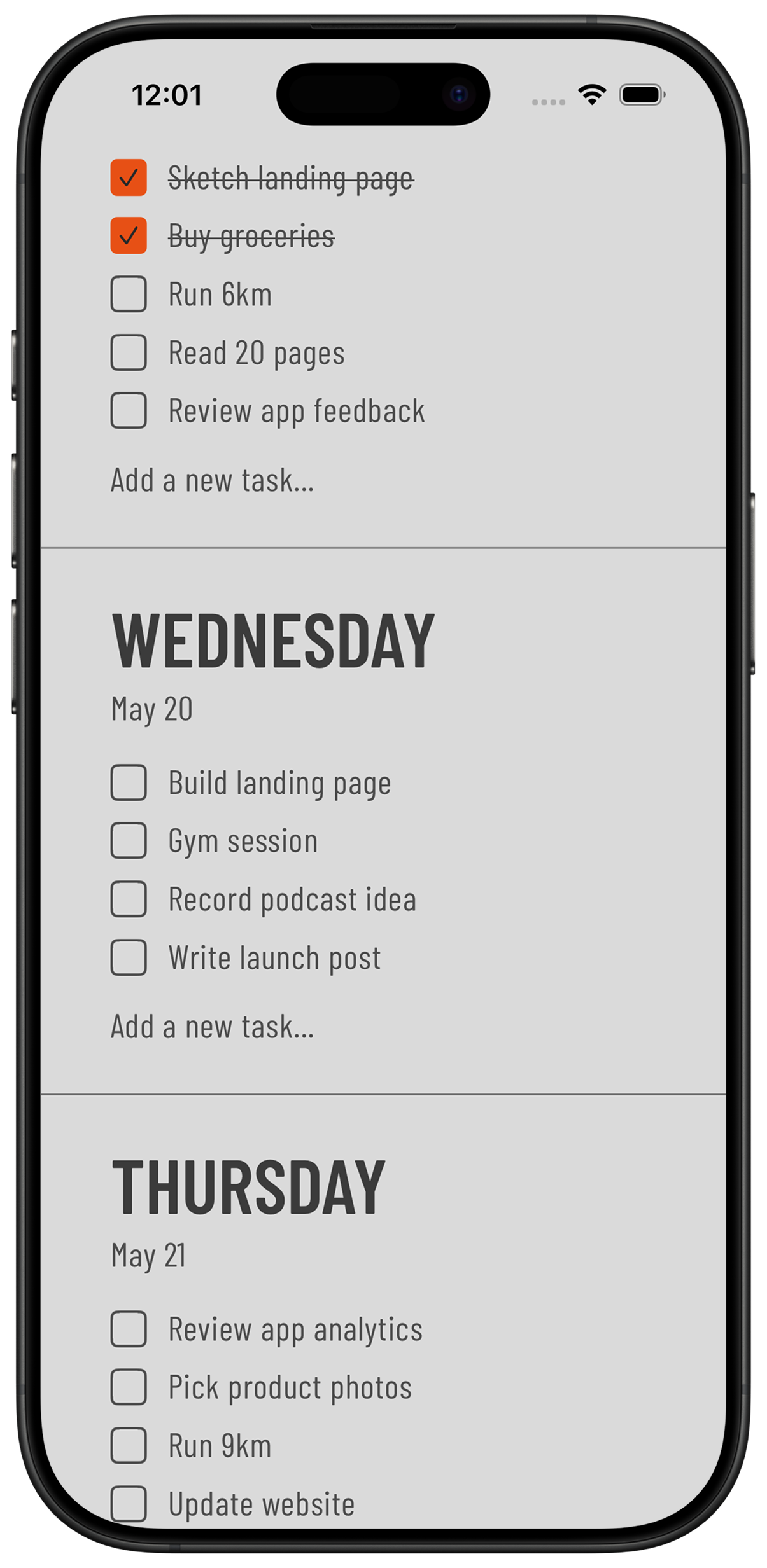
- Days instead of an endless list. A single infinite list gets longer forever. A week split into seven short day lists has a natural boundary — today is either done or it isn't.
- A real Home Screen widget. Android widgets are the whole point of the platform. If your list is not glanceable from the Home Screen, you will forget it exists by Wednesday.
- Works offline. Adding a task on the underground should not fail. Local-first storage also means your tasks are not sitting in someone else's database.
- No account. A grocery list does not need an email address, a password and a privacy trade.
- Honest pricing. A monthly subscription for a checklist is hard to justify. A free trial and a one-time purchase is.
What you can safely ignore
Feature lists sell apps; they rarely help you finish tasks. For personal planning you almost never need sub-tasks, dependencies, priority flags, tags, kanban boards, natural-language parsing, collaboration or an AI assistant. Each one is another decision to make every time you add something.
The two features that genuinely earn their place are recurring tasks and reminders — for the bin day, the rent, the weekly call.
How to set up a simple Android to-do list in 5 minutes
- Install one app and delete the rest. Two to-do apps means neither is trusted. Pick one and move everything into it.
- Brain-dump once. Write down everything you are carrying around, without organising it. Five minutes, no editing.
- Give every task a day. Two or three per day, not fifteen. Anything that does not fit this week goes to next week.
- Add the recurring ones. Bins, laundry, medication, the weekly report. Set them once and stop remembering them.
- Put the widget on your Home Screen. Long-press the Home Screen, tap Widgets, find the app and drop it on your main screen — ideally the top half, where your thumb already looks.
Tally To Do on Google Play
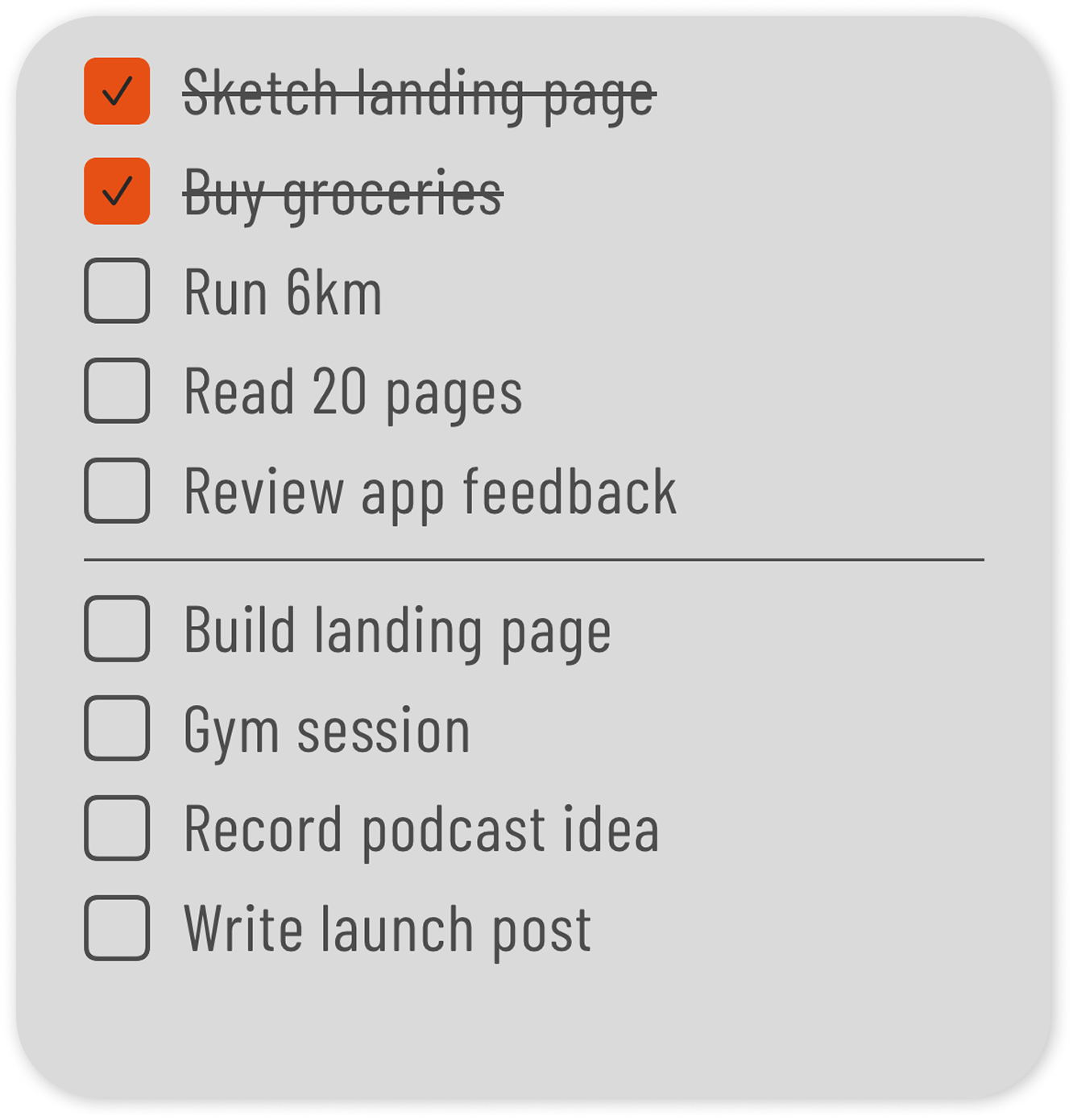
Tally To Do is built around exactly this idea. The week is seven short day lists, adding a task takes one tap, unfinished tasks move to another day in one more, and Home Screen widgets keep the plan visible. Recurring tasks, times and alerts, task colours and dark mode are there; boards, tags and workspaces are not.
There is no account and no sign-up — your tasks stay on your device and work offline. It is 7 days free, then a single one-time purchase, and it is available for Android on Google Play as well as on the App Store for iPhone.
Common questions
What is the simplest to-do list app for Android?
The simplest options are the ones with no accounts, no projects and no subscription — you open the app and immediately write a task. Tally To Do takes this approach: a week split into seven day lists, one-tap entry and Home Screen widgets, with no sign-up.
Is there a minimalist to-do app for Android that works offline?
Yes. Local-first apps store tasks on the device, so adding and ticking off tasks works with no connection at all. Tally To Do keeps everything on your phone and needs no account.
Can I add a to-do list widget to my Android Home Screen?
Yes. Long-press an empty part of the Home Screen, tap Widgets, find your to-do app and drag the size you want onto the screen. Put it on your main screen — a widget you have to swipe to find will be ignored.
Do I need a subscription for a good Android to-do app?
No. Plenty of capable planners are free or a one-time purchase. Subscriptions mostly pay for sync and collaboration features that a personal weekly list does not use.
Is Tally To Do available on Google Play?
Yes. Tally To Do is on Google Play for Android and on the App Store for iPhone, with the same weekly layout and Home Screen widgets on both.
Get Tally To Do on Android
A weekly to-do list with Home Screen widgets, no account and no subscription. 7 days free, then €4.99 once.

Scan to download
Related guides
- Minimalist Weekly Planner Apps: A Simple Comparison — how the minimalist planners compare on price and privacy.
- Weekly Planner App: How to Plan Your Week in 5 Minutes — the five-minute routine that fills the week.
- To-Do List Widget for iPhone: A Home Screen Setup Guide — the same widget setup, on iPhone.
- The Sunday Reset: A 15-Minute Weekly Reset Routine — a weekly habit to keep the list from rotting.
- Guides